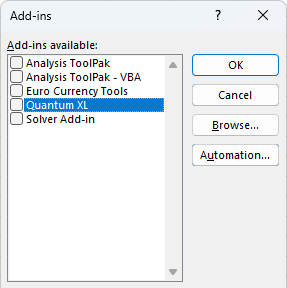
Note: This page applies to Quantum XL - Version 17 and earlier only.
Auto Start Quantum XL - Version 17
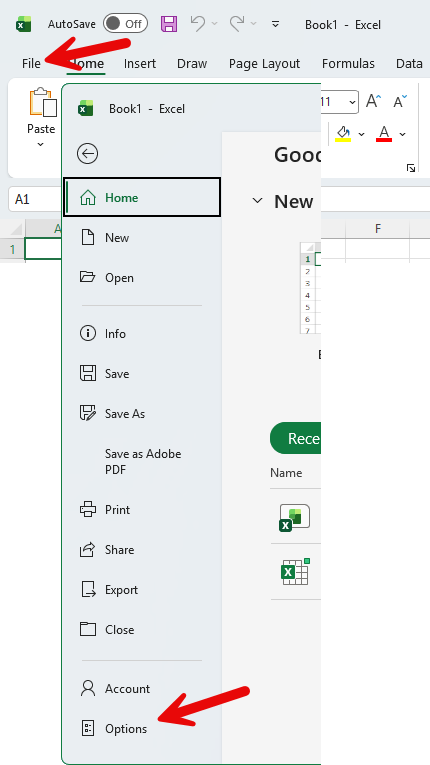
- Click the File Button, and then click Options.
View screenshot ▼
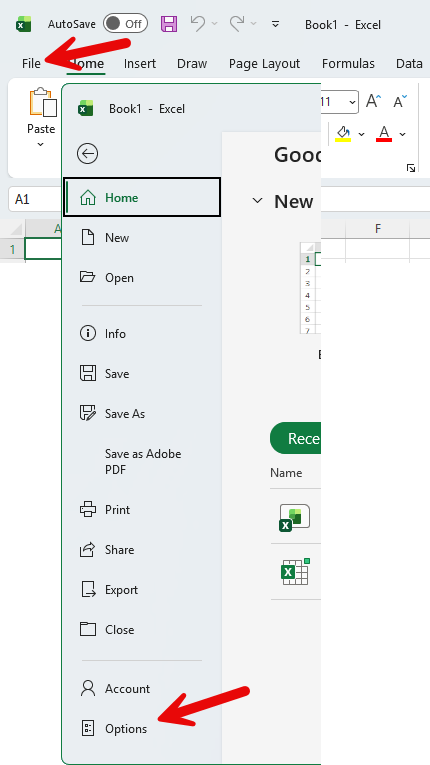
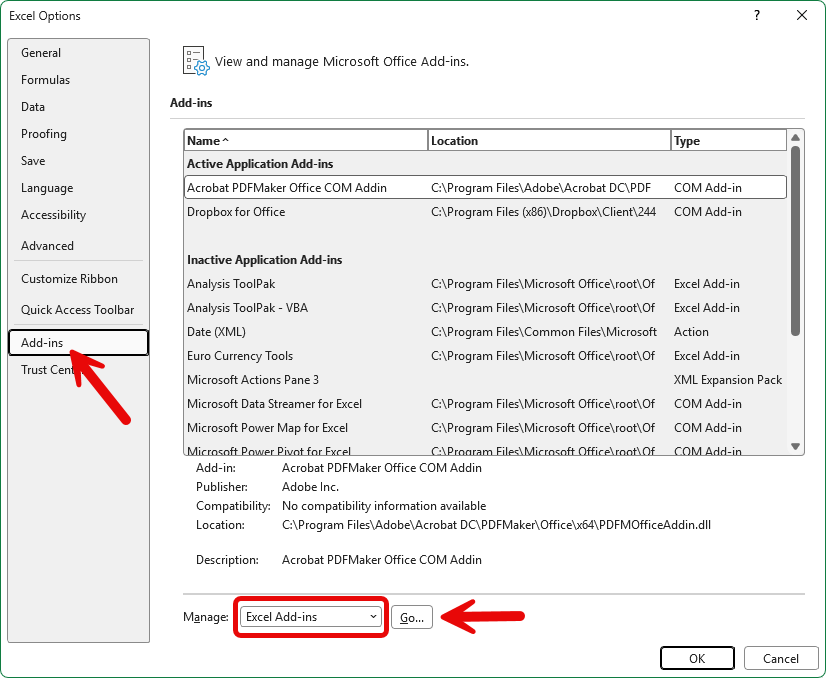
- Click the Add-ins tab; select Excel Add-ins from the Manage: list box and then click the Go button.
View screenshot ▼
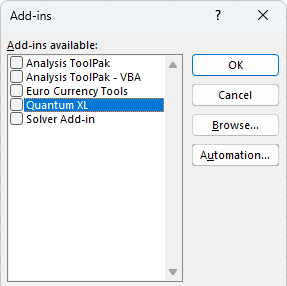
- If you see Quantum XL in the add-ins list, un-check the check box next to it.
View screenshot ▼
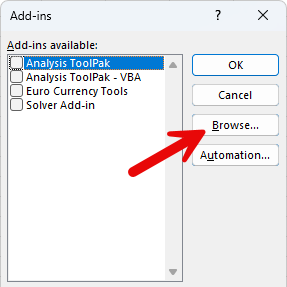
- Click the Browse button and locate the Quantum XL folder. By default, this folder should be
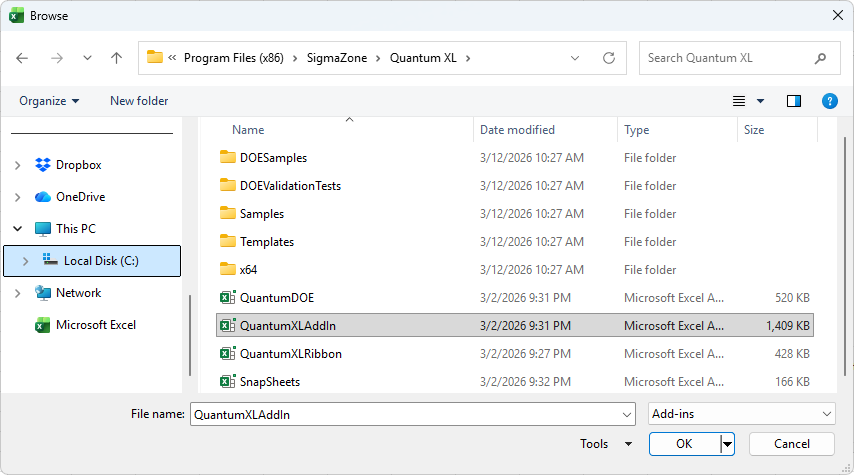
C:\Program Files (x86)\SigmaZone\Quantum XL. However, if you installed Quantum XL into a different folder, use the folder you designated during the install process.View screenshot ▼
- Select the file
QuantumXLAddIn.xlamand click OK.View screenshot ▼
- Make sure that Quantum XL is checked in the add-ins list.
View screenshot ▼
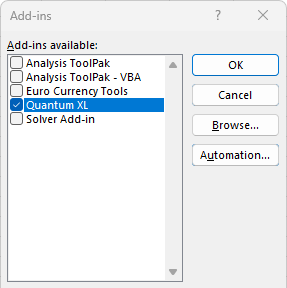
- Quantum XL will auto-start the next time you start Microsoft Excel.
Remove Quantum XL from Excel's Startup List
- Click the File Button, and then click Options.
View screenshot ▼
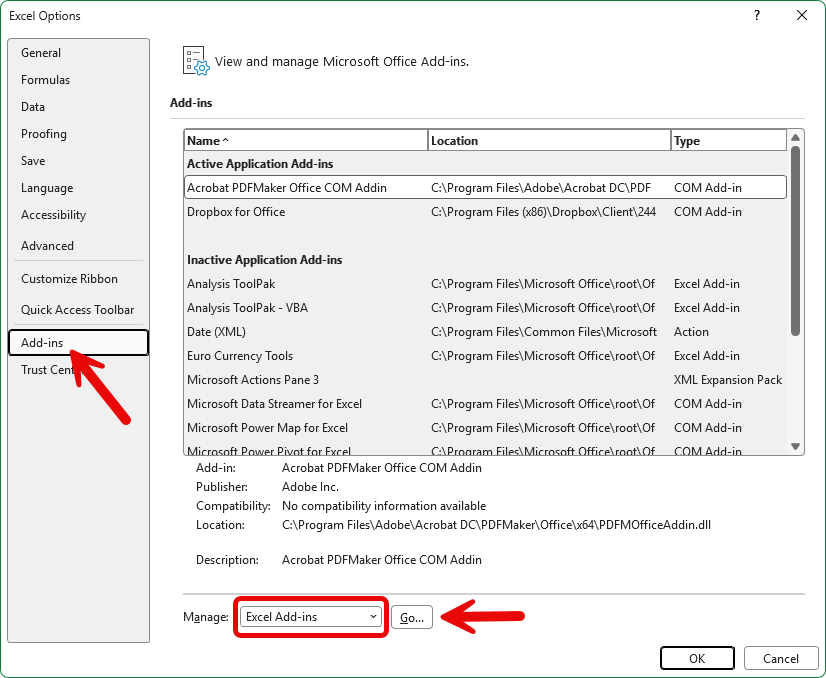
- Click the Add-ins tab; select Excel Add-ins from the Manage: list box and then click the Go button.
View screenshot ▼
- If you see Quantum XL in the add-ins list, uncheck the check box next to it.
View screenshot ▼